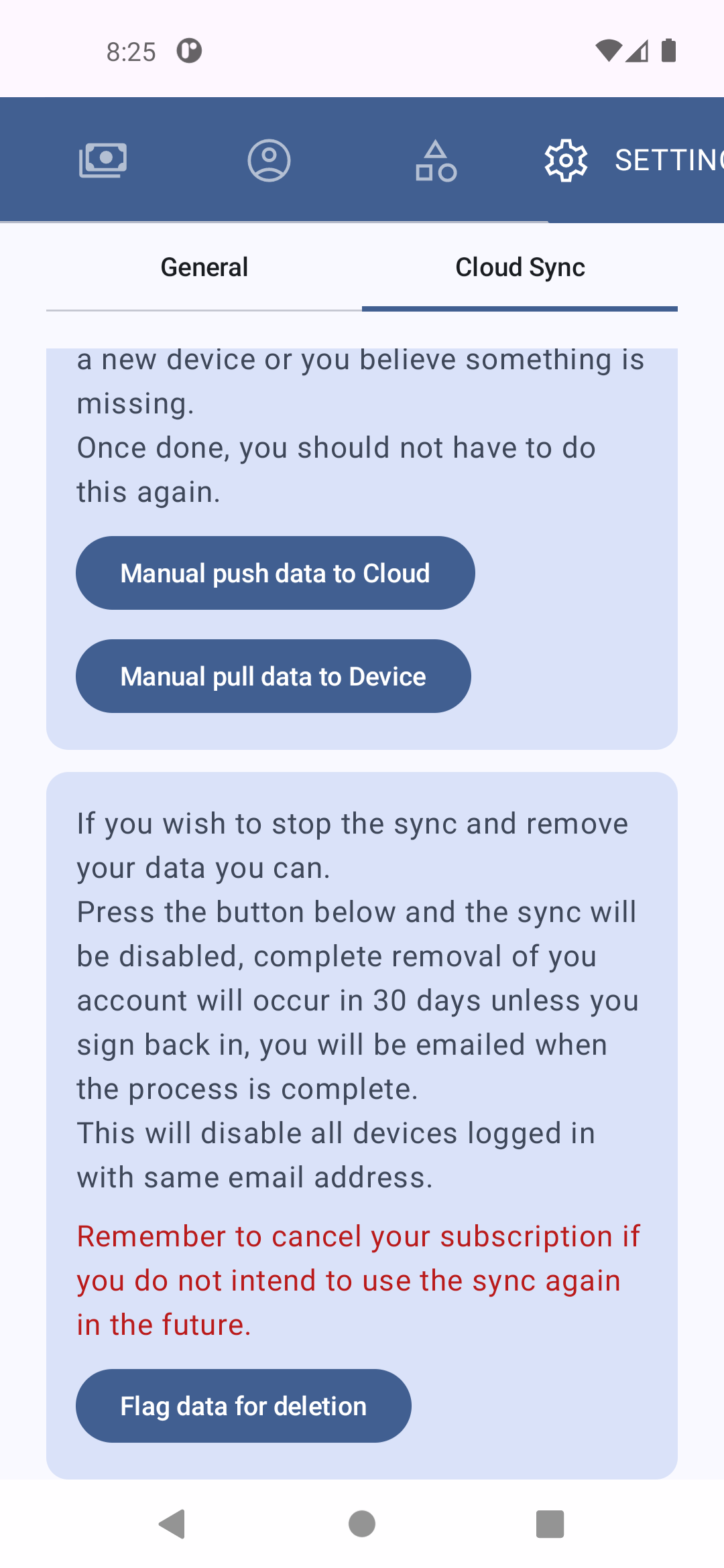
Cloud Sync

The cloud sync tab is where you set you can enable data sync to the google cloud firestore database. This is optional, but due to associated costs, we did have to make this as a subscription item. You may want to consider this if you want to back up your data or if you are using the app on multiple devices.
Subscription
To use this feature, you can subscribe to the cloud sync service by clicking the one of the subscription buttons.
The Annual subscription offers discounted rates.
Once subscribed, cancelling your subscription is managed in the PlayStore and a button is provided to take you there.
Sign In
The sign-in is tied to an email account, it is intentionally done this way instead of using your Google play account so you can use multiple devices across multiple accounts, for example, your partner's device. 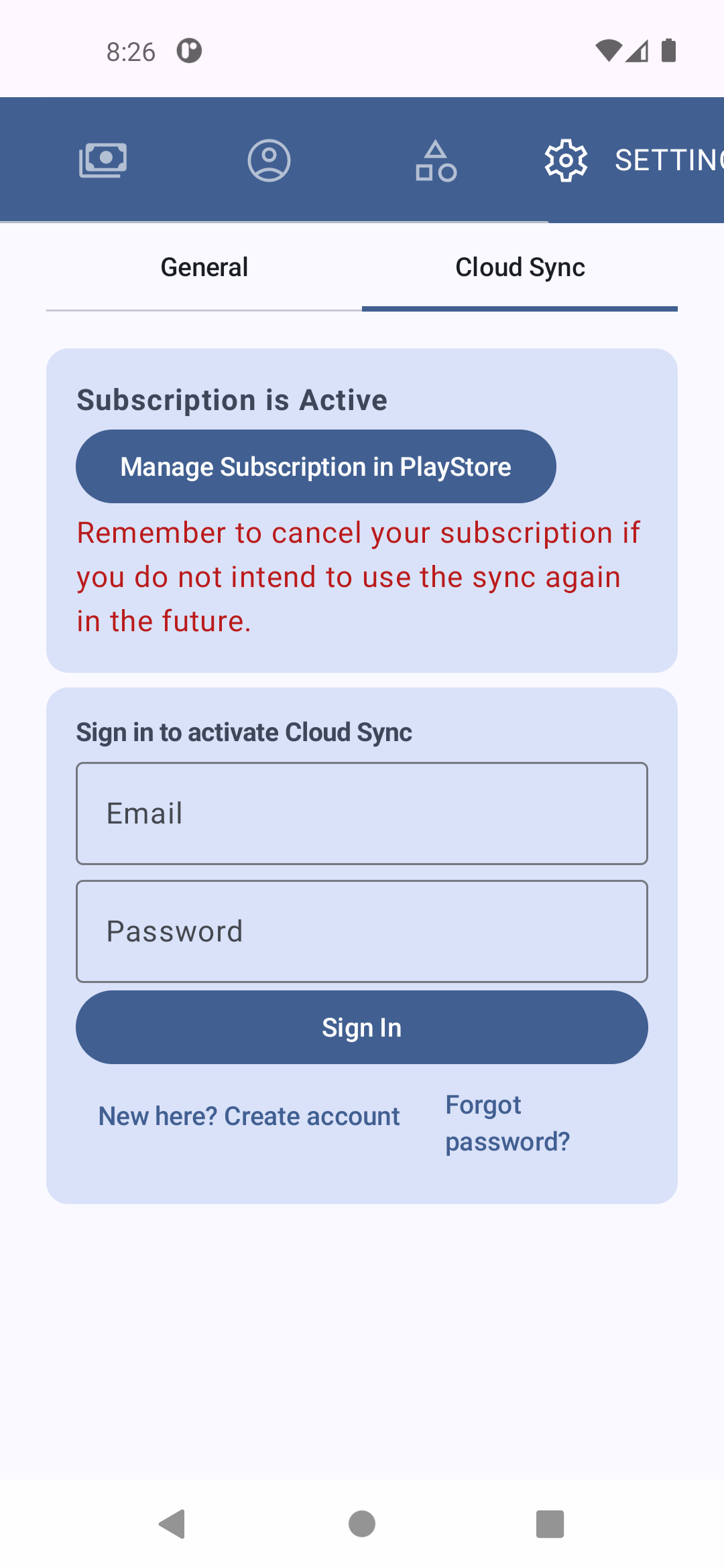
There is also a forgot password option to reset your password if forgotten.
Signed In
Once singed in there are several buttons available to you. 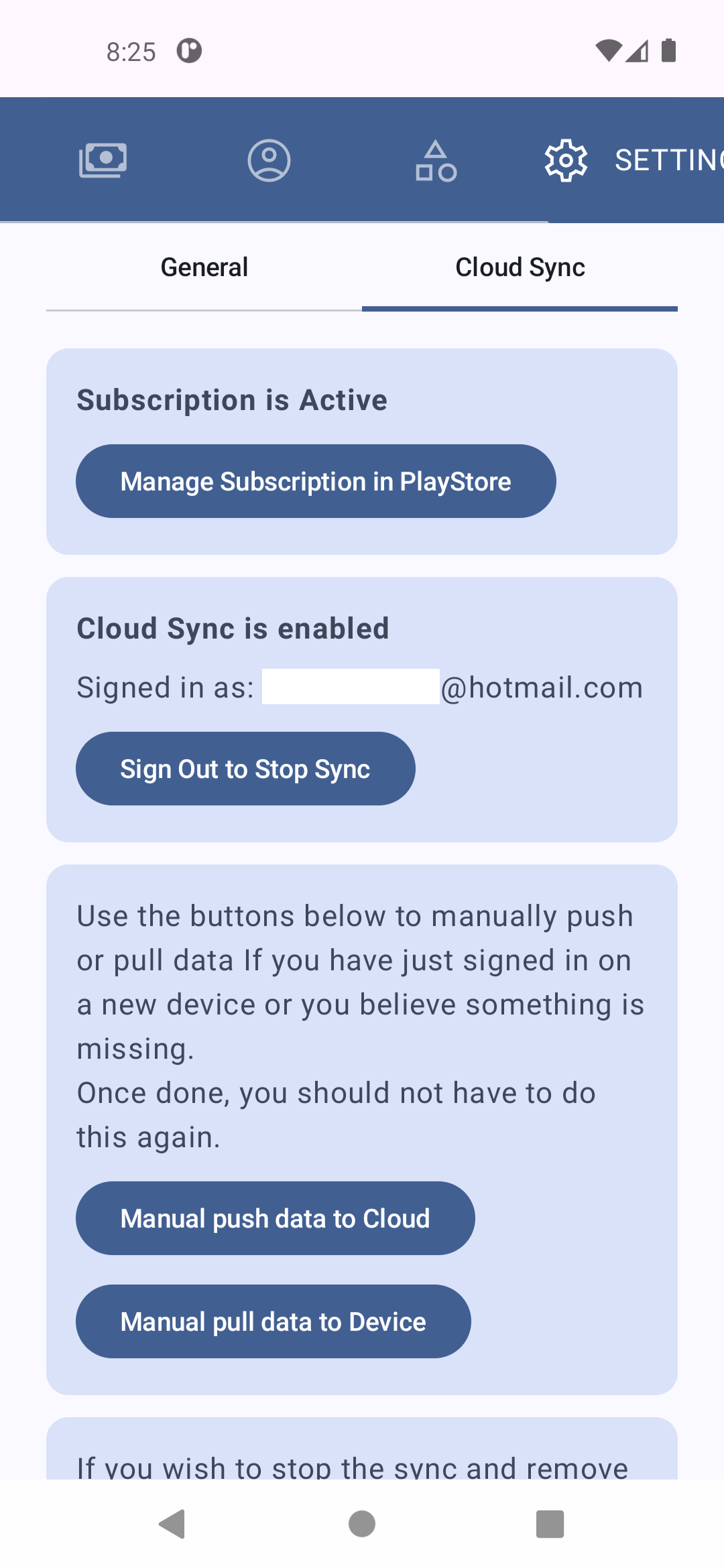
Sign Out to Stop Sync
Pressing this button will stop syncing your data to the cloud on this device only. Your data will remain in the cloud, and other devices will continue syncing as normal. If you sign back in the system should catch you back up unless you have cleared the app's cache or data.
Manually data push and pull buttons
These buttons allow you to manually push and pull data to and from the cloud. Please note that once signed in, any new or updated records will flow to and from the cloud without you needing to use these buttons. We did not build this into the sign-in function, as depending on your scenario, automating this could have an undesired effect, and we thought it's best to leave the control with the user. 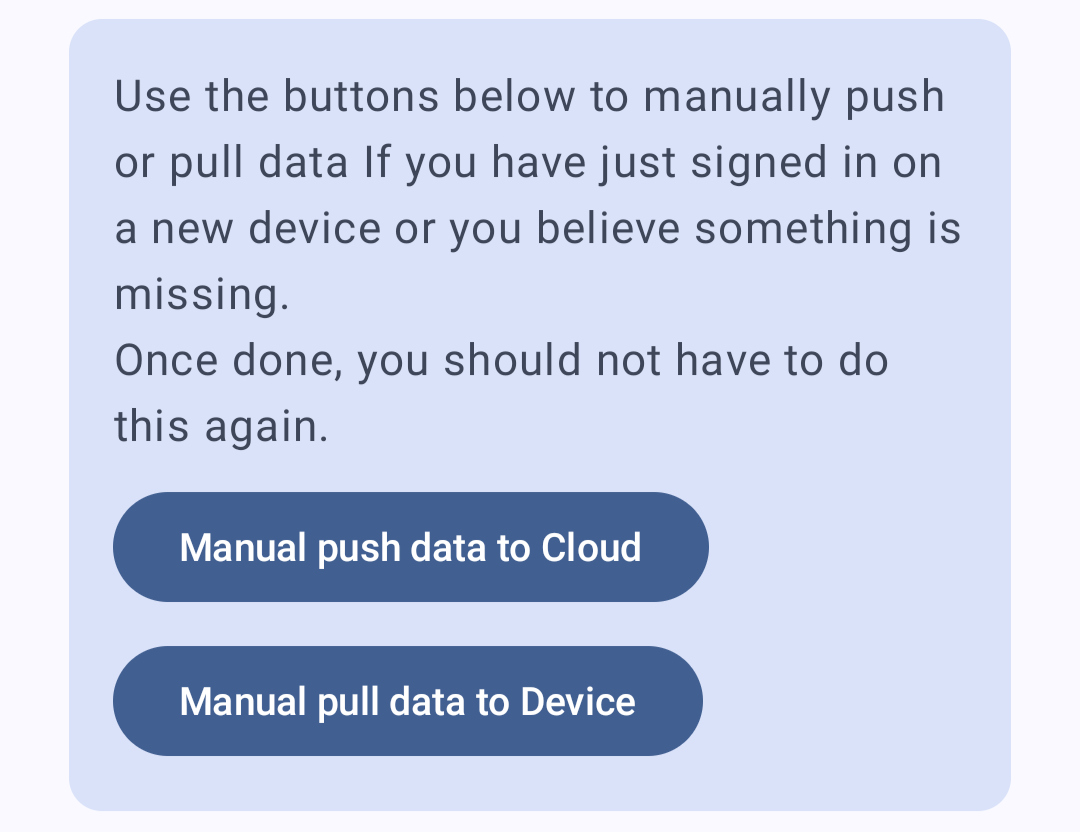
Manually push data to Cloud This button will copy all your devices data to the cloud database and either create new records or update any existing records.
You are most likely to want to use this button if you have just subscribed to copy all records to the cloud for the first time.
Manually pull data to device This button will copy all your cloud data to the device database and either create new records or update any existing records. You are most likely to want to use this button if you have signed in on a second device and want to bring the existing data to that device.
Flag data for deletion
This allows you to opt out and request you data be removed from the cloud. On using this, the system will delete your data in 30 days, if you sign in during this time, the flag will be removed, and your data will not be set to be deleted as signing back in is taken as an indication you want to keep your data.